Automation Opportunities
Automation Opportunities is the feature the app calls Autosight. It looks backwards through your ticket history for problems that keep coming back.
What it needs
A connected Autotask account with some history in it. Without a PSA connection the page asks you to connect one first. It reads closed and currently open tickets for the period you choose.
Running an analysis
- Open Autosight. The first time, a short wizard asks for a period: 3 months, 6 months, 12 months, 18 months, 24 months, or a custom date range.
- Start the analysis. It can take a few minutes, and you can leave the page.
- When it finishes, the results appear on the tabs.
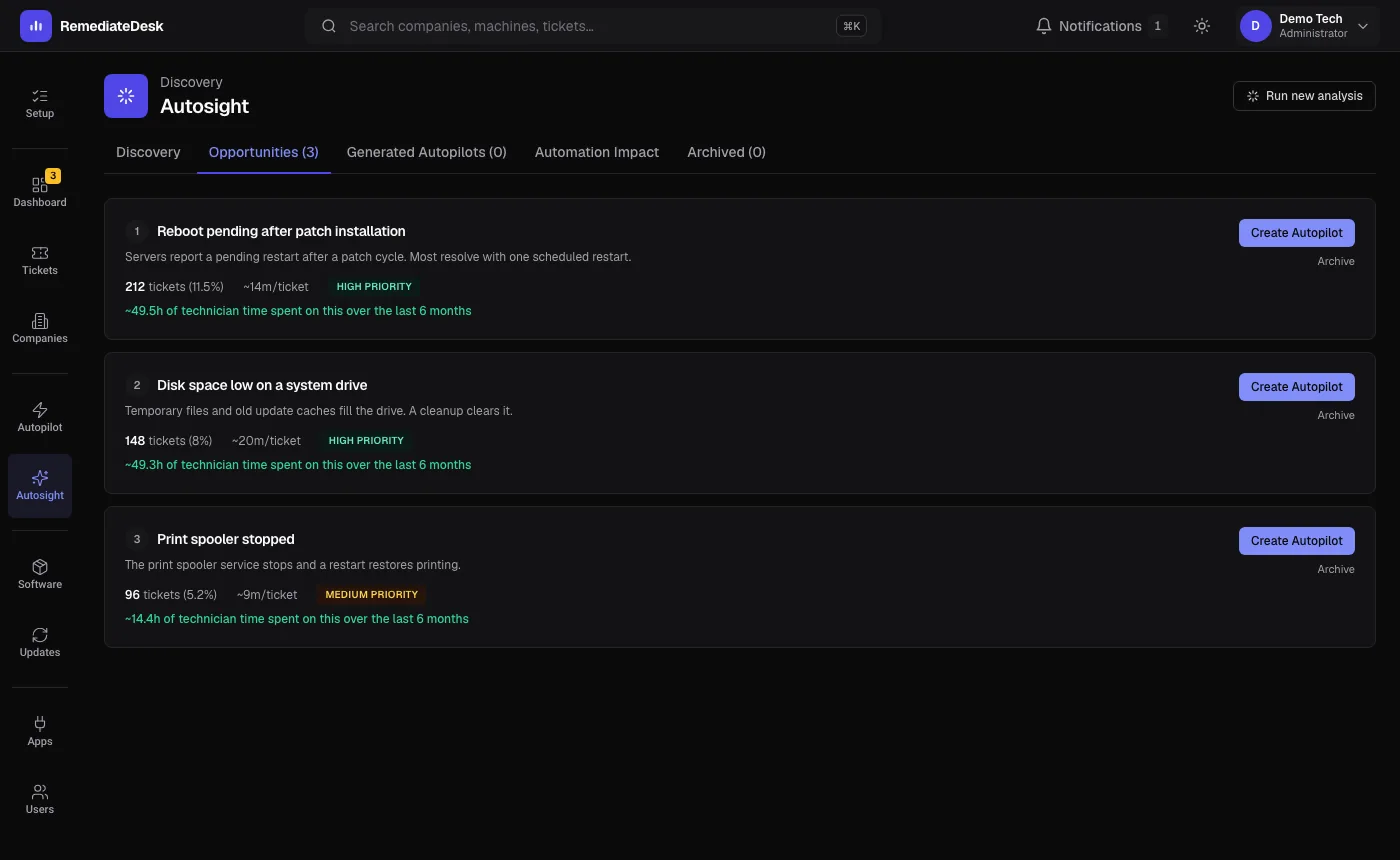
The page has five tabs: Discovery, Opportunities, Generated Autopilots, Automation Impact, Archived. Discovery shows past runs and lets you delete one. Opportunities lists the recurring problems it found, ranked.
Reading an opportunity
Each card shows how many tickets the problem accounts for, a priority label (High, Medium or Lower), and an estimate of technician time spent on it over the period. The detail page adds the evidence behind it and a sample of the real tickets.
Two separate confidence figures are shown, and the difference matters. One says how well a fixed set of steps would handle the problem. The other says how well the live AI would, reasoning ticket by ticket. A problem can be a poor fit for a fixed script and still a good fit for the AI.
The time estimates are exactly that: estimates drawn from your own ticket history and the AI's reading of it. They are not measurements.
Turning one into an instruction
Choose Create Autopilot on an opportunity. It drafts an instruction from the real resolutions in your tickets and opens it in the normal editor, switched off, with notes about anything you should check. You review it, edit it and switch it on yourself.
Archive hides an opportunity you do not want, and the Archived tab lets you bring it back. Automation Impact tracks what your generated Autopilots have done since you switched them on.