Your first ticket
This walkthrough follows a fictional ticket on a fictional machine. The names are made up; the screens and the order of events are what you will see.
The scenario
Ticket #1001 from Acme Dental says a front-desk printer stopped printing. The ticket is linked to the machine WK-DEMO-01. The machine is on the default setting, Ask for everything.
Step by step
1. Open the ticket
On the Tickets page find #1001 and press Chat. The conversation for that ticket opens, with the machine's status at the top.
2. Let the AI look
The AI starts with read-only checks: is the print spooler service running, what is in the queue, what do the recent printing errors say. Because the machine asks for everything, each batch appears as an approval card.
3. Read the card, then decide
The card lists the exact commands with a plain description and a risk label. The labels are Safe, Moderate and Destructive. For a read-only batch, press Approve. Press Deny to refuse the whole batch.
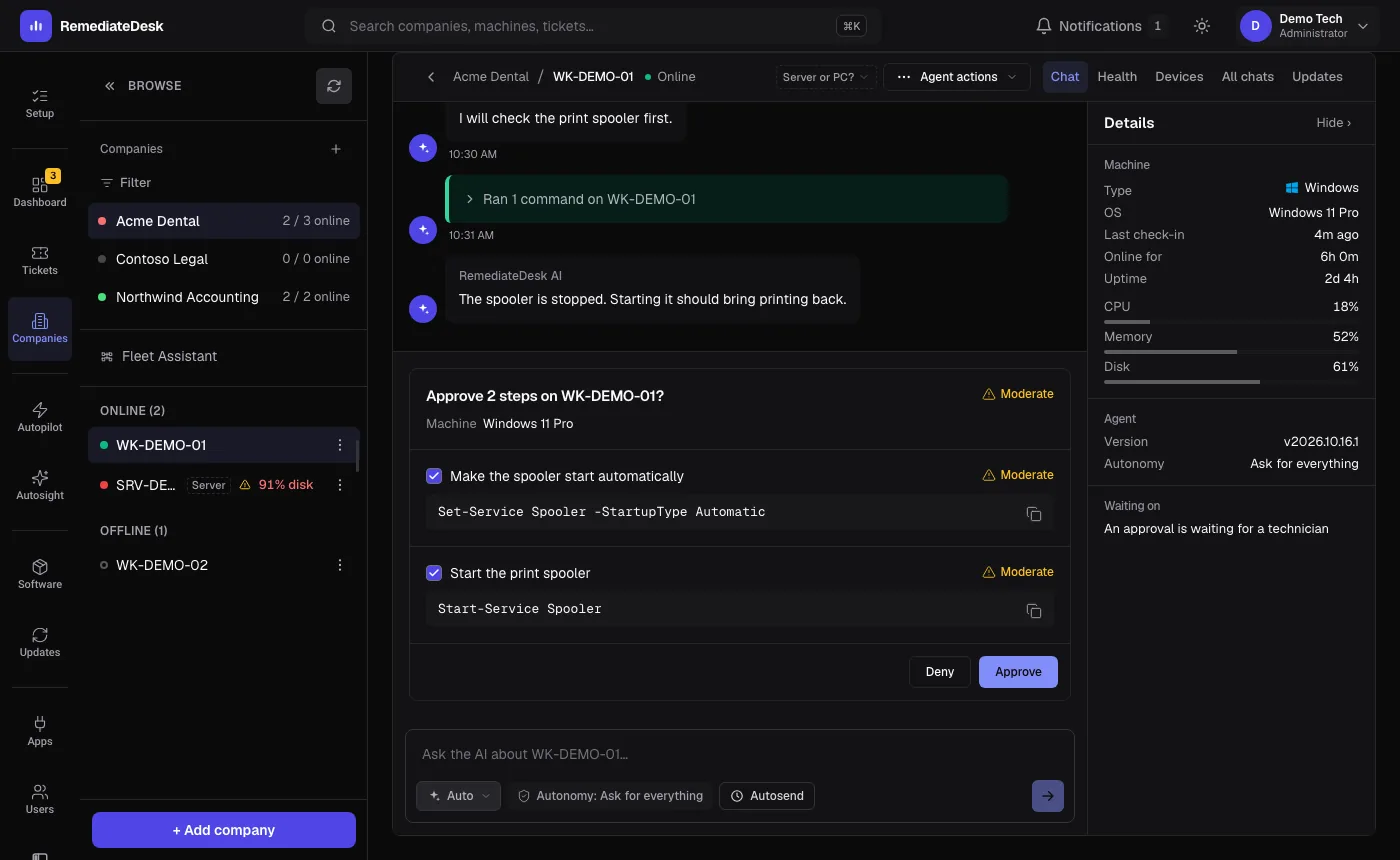
4. Approve the fix
The AI finds the spooler stopped and proposes starting it and clearing one stuck job. That card is marked as a change. Approve it if the commands look right.
5. Watch it verify
The AI does not stop at "the service started". It checks that the service stays running and that a test print job leaves the queue, and only then reports the problem as resolved.
6. Close the loop
It drafts a summary for the ticket. Read it, edit it if you like, and use Post note to add it as an internal note. Post update + mark also moves the ticket to the status you pick. Under the final message, Did this help? takes one tap and helps you see later which kinds of sessions work well.
What to try next
Turn the same problem into an Autopilot instruction so the next print spooler ticket starts without you. The chat has an option to save what just worked as one, and the Autopilot page holds templates to start from.