Install the agent on Windows
One line in an elevated PowerShell window installs the agent as a Windows service. This page covers what to prepare, what it does, and how to check it worked.
Before you start
- A company to put the machine under. Create one from the Companies page if it does not exist.
- Administrator rights on the machine, in a PowerShell window you opened with Run as administrator.
- Outbound access to the internet. The agent never accepts an inbound connection, so there is no firewall rule to open.
Install it
- Open the company and choose Generate install key. The key is tied to that company, so every machine you install with it lands in the right place.
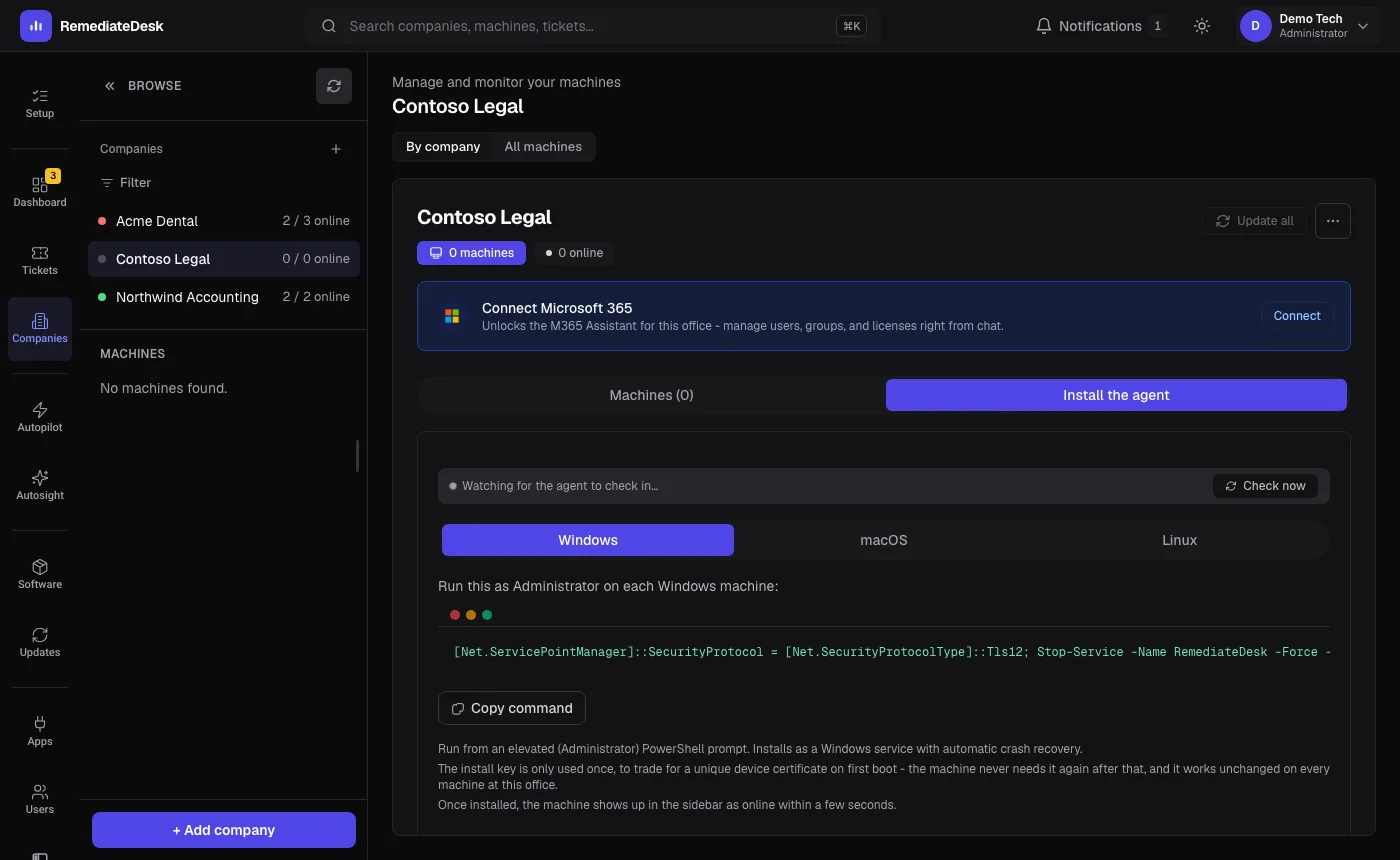
- Pick Windows in the install panel. The command shown already contains your server address and key.
- Copy it and run it in the elevated PowerShell window on the machine itself.
- Wait for the prompt to return. A non-zero exit code is reported as an error with that code in it.
The command downloads RemediateDeskAgent.msi from the RemediateDesk download site, checks its SHA-256 checksum against a published value, retries the download once if the two differ, and refuses to install if they still differ. It then runs the installer with your key and the computer's own name.
Check that it worked
Back on the company page the machine appears in the list with a green dot. Open it and use the Chat tab to ask something harmless, such as how much disk space is free.
If it does not appear, the machine is probably blocked from reaching the internet or the key was copied with a stray character. The troubleshooting section walks through the checks.
Updates and removal
The agent updates itself. It checks once a night, at a random minute between 03:00 and 03:59 on the machine's own clock, and once shortly after the service starts, so a laptop that is switched off at night still catches up. You do not run the installer again for a new version.
The same install panel shows an uninstall command for each system. On Windows it removes the agent along with its saved settings.