Connect Autotask
Connecting Autotask is what turns a ticket into a session. You create a security level and an API user in Autotask, enter three values in RemediateDesk, then check that tickets arrive.
How the connection works
RemediateDesk signs in to Autotask as an API user that you create, using that user's key and secret plus an API tracking identifier. It finds your Autotask region itself from the API username, so there is no address to enter.
There are no webhooks to set up. RemediateDesk checks Autotask every two minutes for tickets that have changed, and keeps its own copy of your tickets so the Tickets page does not wait on Autotask.
Create a security level for the API user
Give the integration its own copy of Autotask's API-only security level, so its access can be changed or removed without touching anything else.
- In Autotask open Admin, then Resources/Users (HR), then Security, then Security Levels.
- Right-click the level named API User (system) (API-only) and choose Copy. Autotask does not let you edit the original, but you can edit a copy.
- Name the copy after the integration, for example RemediateDesk API. Autotask recommends a separate API user for each integration, which makes problems easier to trace and activity easier to watch.
- While copying, tick Not required to change password. Autotask offers it so an API-only user's password does not expire; an expired password would stop RemediateDesk signing in.
Create the API user
- Open Admin, then Resources/Users (HR), then Resources/Users, then New, then New API User.
- On the General section enter a first and last name, for example RemediateDesk. Set Email Address to someone who can act on errors, because Autotask sends integration problem notices there. Under Security Level choose the copy you just made.
- On the Credentials section press Generate Key, then Generate Secret. The key is the user name. Copy both now.
- On the API Tracking Identifier section choose Custom (Internal Integration), type an Internal Integration Name such as RemediateDesk, and copy the identifier Autotask generates. Integration Vendor is for vendor integrations listed in Autotask's Integration Center; RemediateDesk asks you for the identifier instead, so use Custom.
- Leave Line of Business alone unless your business is strictly segregated by it. Autotask advises against associating one otherwise, because errors are not visible to the API user.
- Press Save & Close.
Collect the three values
Each value from Autotask goes into one field in RemediateDesk.
| In Autotask | In RemediateDesk |
|---|---|
| The key you generated on the Credentials section (it is the user name) | API username |
| The secret you generated on the Credentials section | Secret |
| The tracking identifier from the API Tracking Identifier section | API tracking identifier |
Add the connection in RemediateDesk
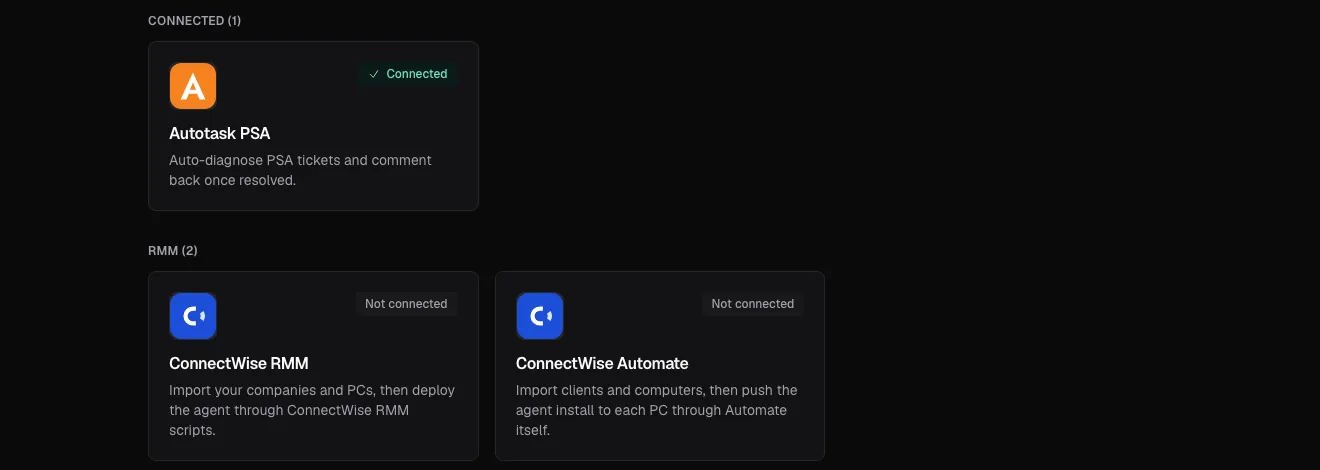
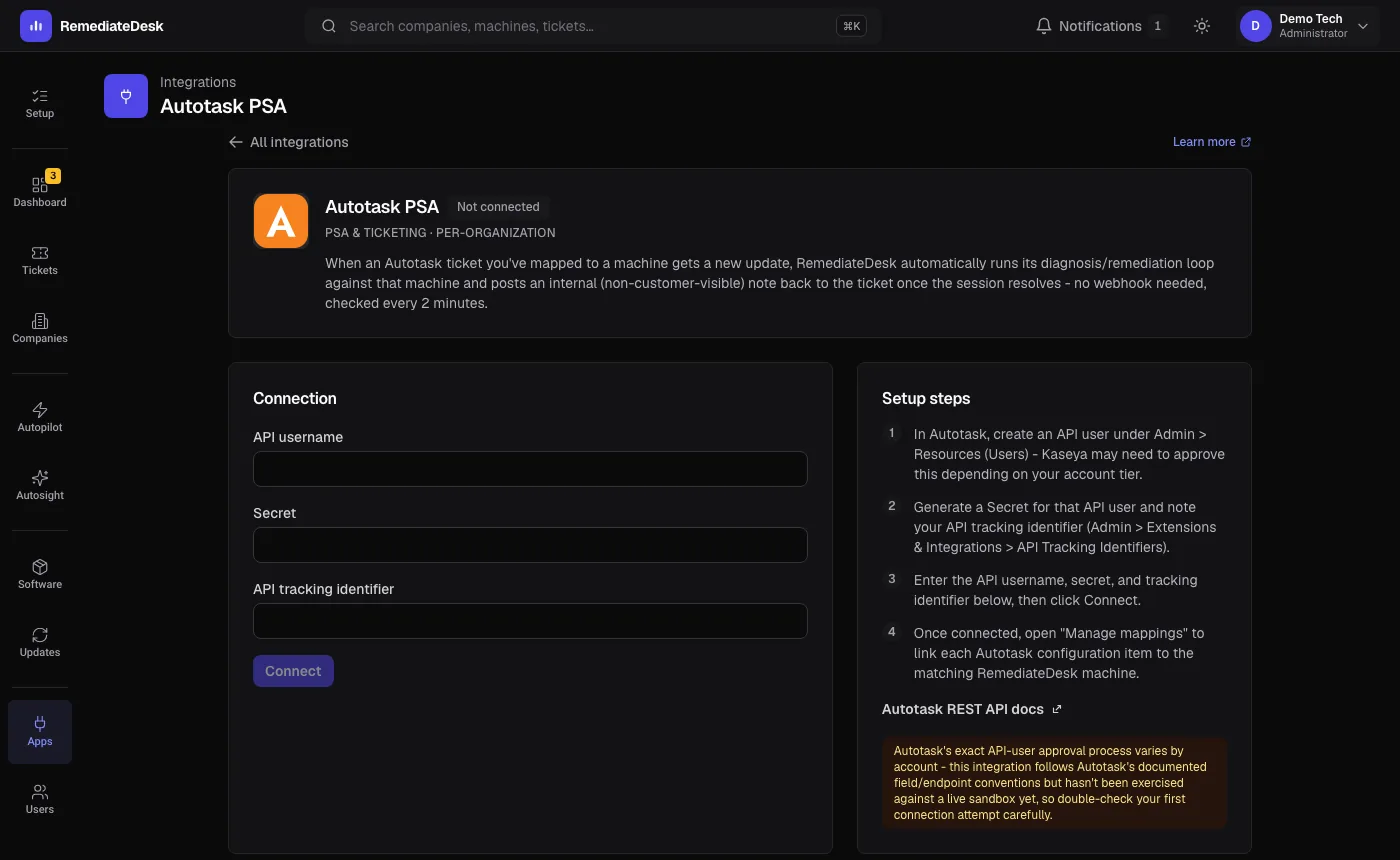
- Open Apps and choose Autotask PSA.
- On the Connection tab enter the three values. Connect stays greyed out until all three are filled in.
- Press Connect. There is no separate test button: RemediateDesk signs in to Autotask first and saves nothing unless that works. If it does not, you see "Could not connect with those credentials - double-check them and try again."
- When it works, the credentials go into a secrets vault (one secret per organisation, never the application database), the first sync of your tickets is queued straight away, and the Connection tab shows who it is connected as.
Check that tickets are syncing
Open the Tickets page. The first sync takes a moment, so press Reload if the list is empty; that only re-reads the copy RemediateDesk already holds and does not contact Autotask.
The Open / closed config tab controls the copy. Sync tickets every sets how often it refreshes (the default is 15 minutes), and Sync now queues a refresh at once. It holds open tickets and tickets closed within the last 30 days, and shows when it last synced.
The same tab asks "Which statuses count as open?" and "Which statuses count as closed?". Tick the statuses that mean closed in your account, then press Save status mapping. Leave the closed list empty to use Autotask's own completed date instead. Ticking nothing under open means anything not closed counts as open. A status in neither list, such as On Hold, is left out of both views.
Link machines to Autotask assets
A ticket is only worked automatically when its Autotask asset is linked to a machine. Open the Mappings tab. Links RemediateDesk suggested are marked auto-matched: check each and press Confirm. Refresh names re-reads asset names from Autotask, which are otherwise copied about once a day.
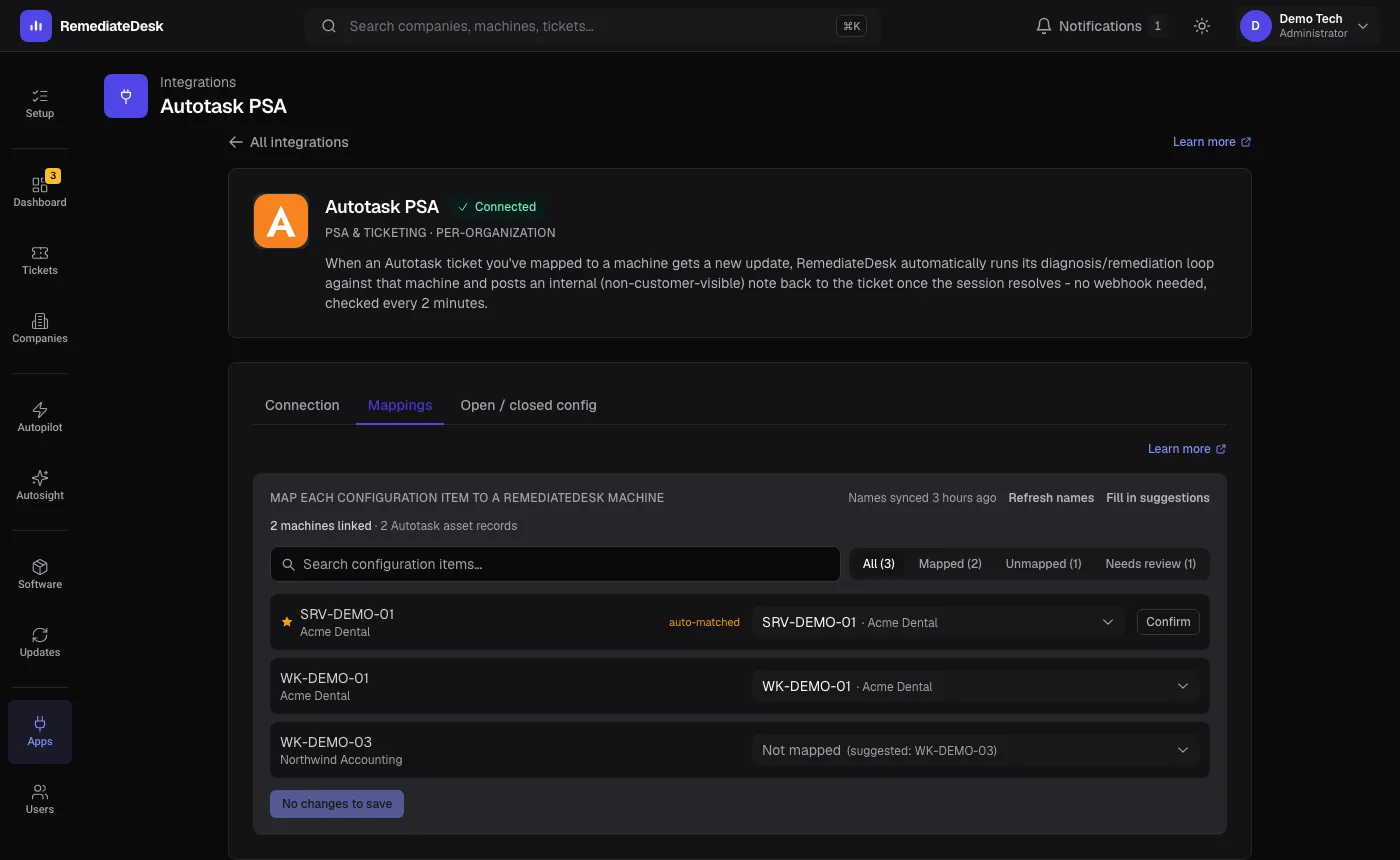
The full walk-through, including how to find the machines still unlinked, is on Map machines to tickets.
Test it end to end
- Pick an open ticket on a machine that is linked. On the Tickets page press Chat to start the conversation by hand and confirm the machine answers.
- To see the automatic path, change a linked ticket in Autotask, for example by adding a note. Within a few minutes its RemediateDesk column shows what happened.
- A session starts on its own only if a saved instruction matches the ticket. With none, the column reads "No matching playbook", which is normal, and nothing has gone wrong.
The first check after you connect looks back one day, so a linked ticket changed in the last day can be picked up straight away. A ticket that has already been handled is not started again by a later update.
What to expect
- Autotask is checked every two minutes for changed tickets. The Tickets page shows a saved copy that refreshes on the schedule you chose.
- Notes RemediateDesk adds to a ticket are internal. The AI never closes a ticket; a person does.
- A machine set to Ask for everything still waits for a person to approve each command, whether the ticket came from Autotask or from the chat.
If something is wrong
| Symptom | Likely cause | What to do |
|---|---|---|
| "Could not connect with those credentials - double-check them and try again." | A value was mistyped or has trailing spaces, the secret was regenerated since you copied it, the API user is not Active or became Locked after failed sign-ins, or Autotask could not be reached. | In Autotask open the API user: check Active and clear Locked, generate a new secret, and copy the tracking identifier again. Enter all three values once more. |
| Connected, but the Tickets page is empty | The first sync has not finished, or the Open filter is hiding tickets whose status is in neither list. | Press Reload, then Sync now on the Open / closed config tab. Check the statuses you ticked. |
| A ticket you expected is missing | It closed more than 30 days ago, or its status is in neither the open nor the closed list. | Change the status lists and save, then run a sync. |
| Tickets are listed but nothing runs | The ticket's asset is not linked to a machine, or no enabled instruction matches it. | Read the RemediateDesk column and follow Nothing happened on a ticket. |
| Syncs are slow or fail now and then | Autotask limits how many API requests an organisation's database can receive each hour, counting every integration together, and slows or suspends service near the limit. RemediateDesk limits its own simultaneous requests and waits and retries when Autotask says it is busy. | Check what else is calling the Autotask API. Choose a longer refresh interval if the copy does not need to be fresher. |
Autotask describes the limit on its own page, REST API supportability, query thresholds, and latency.