Writing good instructions
An Autopilot instruction is a brief for a capable new colleague. You write what you want done once, and it is followed every time a matching ticket arrives.
Say what you want done
Write in the second person, as you would to a technician starting on the ticket. Describe the work, not the guard rails. The safety rules apply whatever you write, so there is no need to repeat them in every instruction.
Five parts make an instruction work well, in roughly this order.
- Which tickets it is for. This short description is compared with every future ticket and decides whether the instruction ever starts. Describe the recurring shape of the problem. Leave out machine names, article numbers and dates, or it will only match the one ticket you were looking at.
- What to find out first. Name a real thing to check: a log, a service, a counter, a registry value. "Check the server" gives it nothing to act on.
- Which situations exist. Most alerts hide two or three different causes that need opposite responses. Spelling them out is the most valuable thing you can write, because it is the part the AI cannot work out from the alert alone.
- What done looks like. Name the condition that proves the fix, such as the service running or the space freed. A command finishing without an error is not proof.
- What to put on the ticket. A note with the findings, a status change, or a question for the assignee are all things it will do when asked.
What it can and cannot do
- It can run checks and fixes. Risky ones wait for a person under the normal rules.
- It can add an internal note to the linked ticket and change the ticket's status.
- It can ask you a question mid-run and wait for the answer.
- It can come back later to check again. A follow-up can be anywhere from 5 minutes to 14 days away, and each ticket allows up to 3 at a time.
- It cannot close the ticket. That decision stays with a person.
- It cannot send an email or make a call, and it cannot show a message to whoever is at the machine, apart from the warning on a scheduled restart.
Four worked examples
These are written the way you would write them, in short, and are based on four of the built-in templates. The templates themselves are far longer, because they cover the awkward cases a real fleet produces. Open any of them from Autopilot to read the full version.
1. Windows patch installation failure
For tickets saying a Windows update failed to install. A short version:
A patch-management alert says an update failed to install on a Windows machine.

1. Read the ticket and list every failing update with its error code. Convert any decimal code to hexadecimal before you quote it.
2. Check which of those updates are actually missing now. Updates that are already installed are stale alerts: say so and stop.
3. For each update that is still missing, find out why: not enough disk space, a stuck Windows Update service, a pending restart.
4. Fix what is safe to fix. Ask me before any restart.
5. Check again that the update now shows as installed, then write what you found on the ticket.
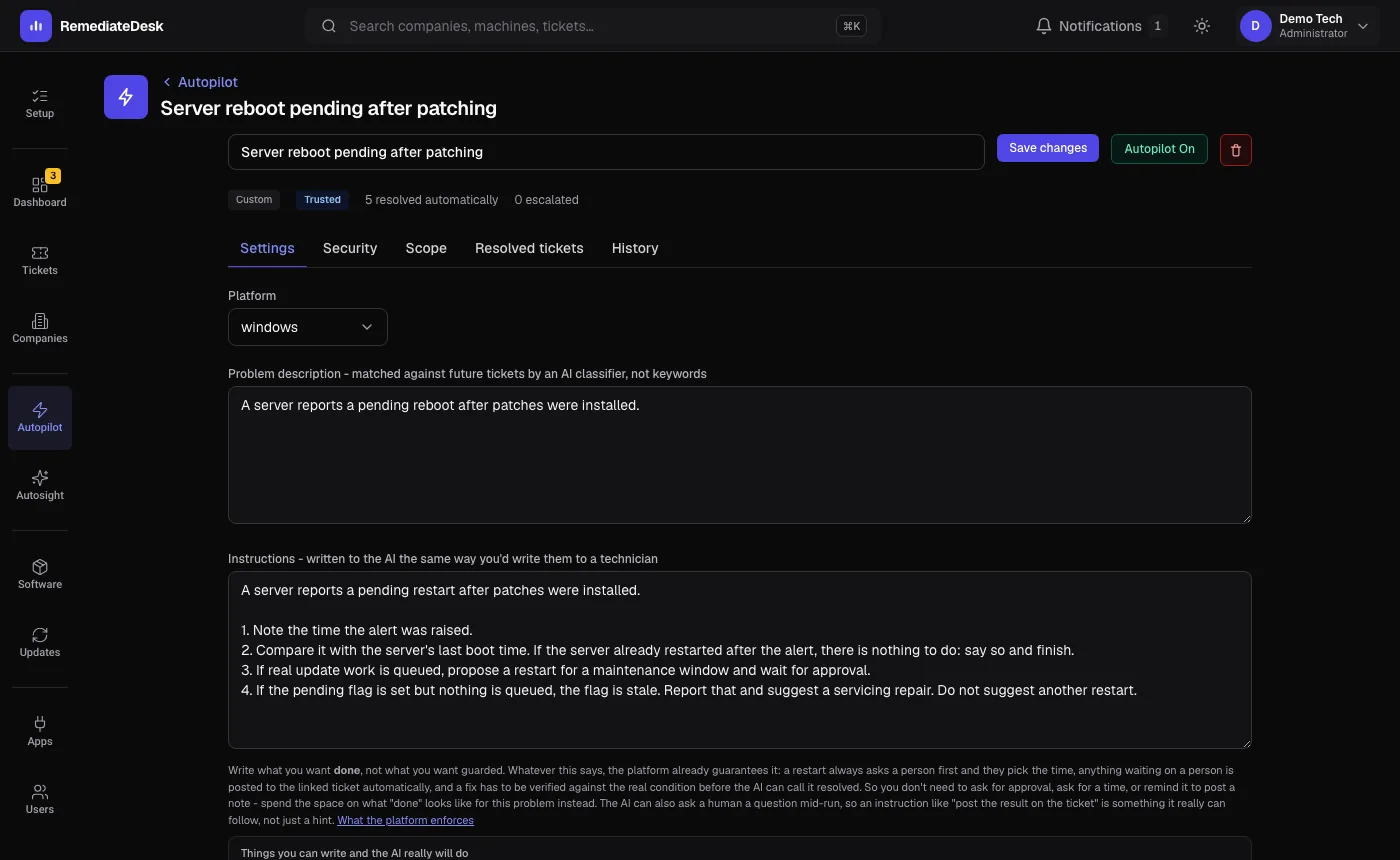
2. Server reboot pending after patching
For a server that reports a restart pending after patching. The important part is naming the situations:
A server reports a pending restart after patches were installed.

1. Note the time the alert was raised.
2. Compare it with the server's last boot time. If the server already restarted after the alert, there is nothing to do: say so and finish.
3. If real update work is queued, propose a restart for a maintenance window and wait for approval.
4. If the pending flag is set but nothing is queued, the flag is stale. Report that and suggest a servicing repair. Do not suggest another restart.
3. macOS patch installation failure
For a Mac that failed to install a macOS update. A Mac has no PowerShell, so the checks are shell commands, and the template carries settings such as the restart time.
A patch-management alert says a macOS update failed on a Mac.

1. Read the failure text. "No such update", a timeout and an exit error are three different problems.
2. Check free disk space and whether an earlier download is half finished.
3. Check whether the pending item is a point release or a major upgrade. If it is a major upgrade and my setting says no majors, report it and install nothing.
4. Install at the restart time in the settings, then confirm the version afterwards.
4. SQL Server: transaction log, backup failure, service down
For database alerts. The useful lesson here is how to tell the AI what it must never trade away, and when to stop and say it has been refused rather than keep trying:
A SQL Server alert fired. It is one of three kinds: a transaction log nearly full, a full backup that failed, or the service not running.

The one rule above all others: never do anything that costs the customer the ability to restore their database. Freeing space is not worth it.

1. Work out which kind of alert it is from the wording.
2. Confirm the alert is still true. Find the real instance names on the machine and read the current log usage. If the figure is already low, the alert is stale: say so and stop.
3. For a full log, find out why it cannot clear before proposing anything. If an open transaction is holding it, report who owns it and how old it is, and do not end it. If it is held for replication, do not touch it.
4. If a login is refused, that means the agent is not allowed in. Say so plainly and stop. Do not try other connection tricks and do not restart the database to get in.
5. Write what you found on the ticket.