How approvals work
Nothing that changes a machine runs until the rules say it may. This page follows one command from proposal to execution.
The order of decisions
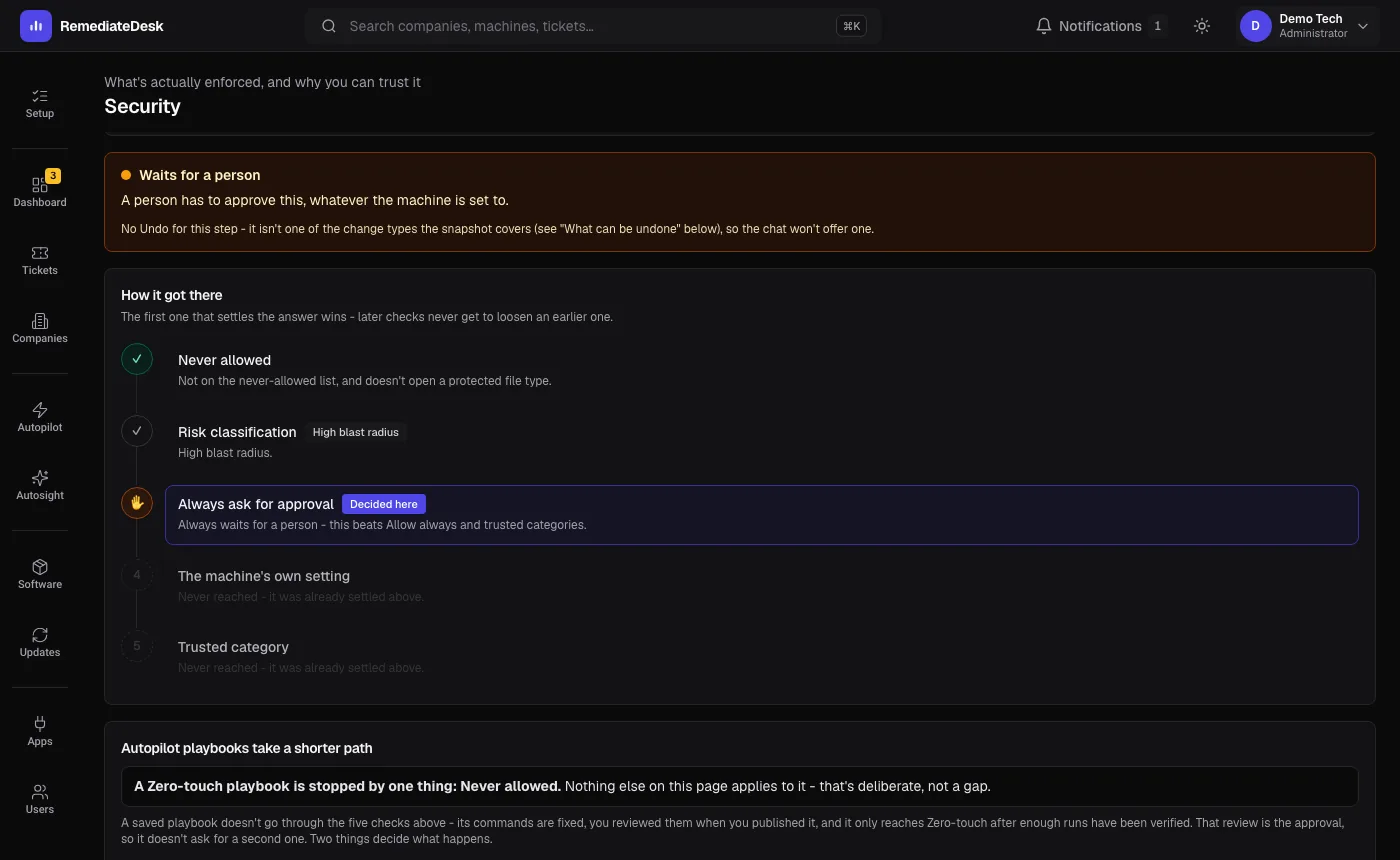
Every command the AI proposes passes through the same checks, in a fixed order, and the first one that settles the question wins. The Security page lets you try a command against them and shows which one decided.
- Never allowed: a command on the never-allowed list is refused outright, even if you click Approve.
- Risk classification: the command is judged read-only, a routine change, or high blast radius.
- Always ask for approval: anything on the always-ask list waits for a person, even on a machine set to run everything.
- The machine's own setting: for the rest, the machine's setting decides. Set to "Ask for everything", every step waits. Set to "Auto-run safe commands", only changes wait. Set to "Auto-run everything", the remainder runs.
- Trusted category: an Administrator can mark specific, mechanical categories of work as trusted, which lets their routine changes run on a machine set to "Auto-run safe commands".
The approval card
The card shows each command exactly as it will run, with a description and a risk label. The labels are Safe, Moderate and Destructive. Approve runs what you have selected and Deny refuses it.
You can tick only some of the commands. The ones you leave out do not run, and the AI is told they were skipped, so it does not assume they happened.
The card is built by the system from what the AI proposed. The only things you can change on it are which commands to include, a restart time and a time limit, never the text of a command, so nobody can approve one thing and run another.
A long-running command asks first
A command has a default limit of 5 minutes. When the AI knows a command legitimately takes longer, such as a system file check or a large install, it asks for more time, up to 30 minutes. Any command given extra time always asks first, whatever the machine's setting is, and the card lets you choose the limit. The only exception is a Zero-touch Autopilot instruction you have already reviewed.
If a command is stopped at its limit, the AI is told it was cut off by that limit and not that the thing it was checking is broken.
A restart asks, and you choose when
A restart always waits for a person, at every setting and every trust level. The card for a restart lets you choose when: Maintenance window, As proposed, Now, In 15 min, In 1 hour, or a date and time of your own up to a day ahead.
A restart within 15 minutes becomes an on-screen countdown that anyone at the machine will see. A later one is scheduled on the machine as a Windows Scheduled Task, with a 5-minute warning shown on screen before it goes down. The warning text is fixed by the system, so it can never announce a time other than the one you chose.
Limits that stop a loop
If the AI keeps proposing changes without getting the problem fixed, it hits a cap after 5 attempts by default, stops proposing further changes and asks for a person. An Administrator can raise or lower that cap on the Security page.
A proposal that goes unanswered stays waiting for up to seven days, so an approval raised overnight is still there in the morning.